Changing Assignment Units (Effort)
|
By default, when a team member (resource) is assigned to a project task,
100% of their available time is scheduled to be spent working on the task. Project managers can change this after the team member is assigned to the task. You might want to do this if team members are assigned to more than one task that overlap and you do not want to over-assign them.
Resource assignment is specified as a percentage of the team
member's total available time. For scheduling purposes, total available
time is determined by the Changepoint PPM workweek calendar and includes any applicable nonworking time.
Note: Changing a team member's assignment for a task can impact the task itself. For example, if a task is effort driven, one day in duration and has one resource assigned at 100%, then the assignment is changed to 50%, the task duration will change to 2 days.
TO CHANGE ASSIGNMENT UNITS in the gantt chart:
- In the Gantt Chart, next
to a task bar, double-click the assigned resources icon (
or
).
The Resource Assignment window displays.
- To change the assignment percentage for a resource, type a number in the %
text box next to the team member's name.
This number represents the percentage
of the total available time that the team member will spend working on
the task.
- Click OK to close the window.
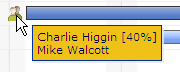
The percentage of available time the team member will spend working on the
task is included after their name in the tooltip that displays when you mouse over the assigned resources icon:

Note: A resource name that has no percentage listed is allocated for 100% of their available time.
TO CHANGE ASSIGNMENT UNITS IN THE TASK PANE:
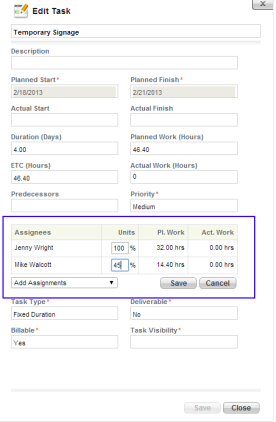
- In the Task List, click on the name of a task. This will open the Task Pane.
- To change the assignment percentage for a resource, type a number in the %
text box next to the team member's name.
This number represents the percentage
of the total available time that the team member will spend working on
the task.
- Click Save to commit your changes.
-
Related
Topics: