 if a single resource is assigned to the task
  if more than one resource is assigned to the task
|
Project managers can remove team member assignments from tasks in the Gantt chart.
When tasks have assigned team members, one of two resources icons displays in front of the task bar:
if a single resource is assigned to the task if more than one resource is assigned to the taskMoving your mouse cursor over the resource icon displays a pop-up with the resource name(s) and allocations if they are less than 100% of the resource's available time. Use the popup to remove assigned team members.
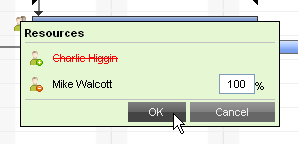
Note: You can also unassign team members from a task in the Task Grid by deleting their name from the Resource Names column. For more information about the Task Grid, see About the Gantt Task Grid.
By default, team members are scheduled to spend 100% of their time on a task. You can specify that team members spend a different percentage of their time working on a task. For more information, see Changing Resource Allocation Units (Effort).
Related Topics: